

As of June 2026 the Sub Finder tool is available to captains/assistant captains of team registrations and captains of free agent (individuals) teams.
There are two ways to use the feature: a team looking to add teammates for a specific game, and individuals interested in filling in to play additional games.
Team Use
For when your team will be missing players.
When logged into your JAM profile, navigate to the "Teams" tab at the top of the page.
Click the "Current" tab, then click the team that you want to find subs for.
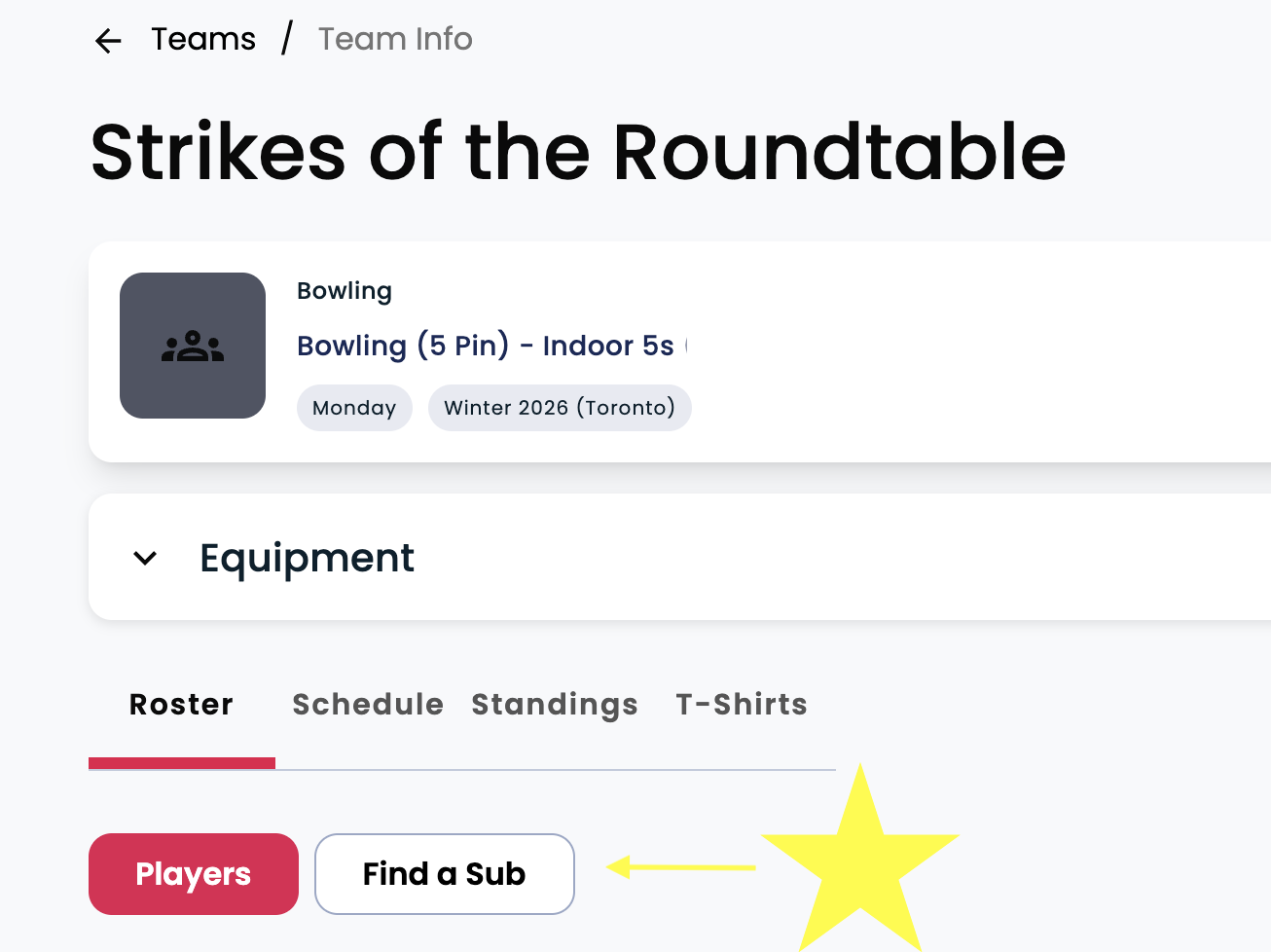
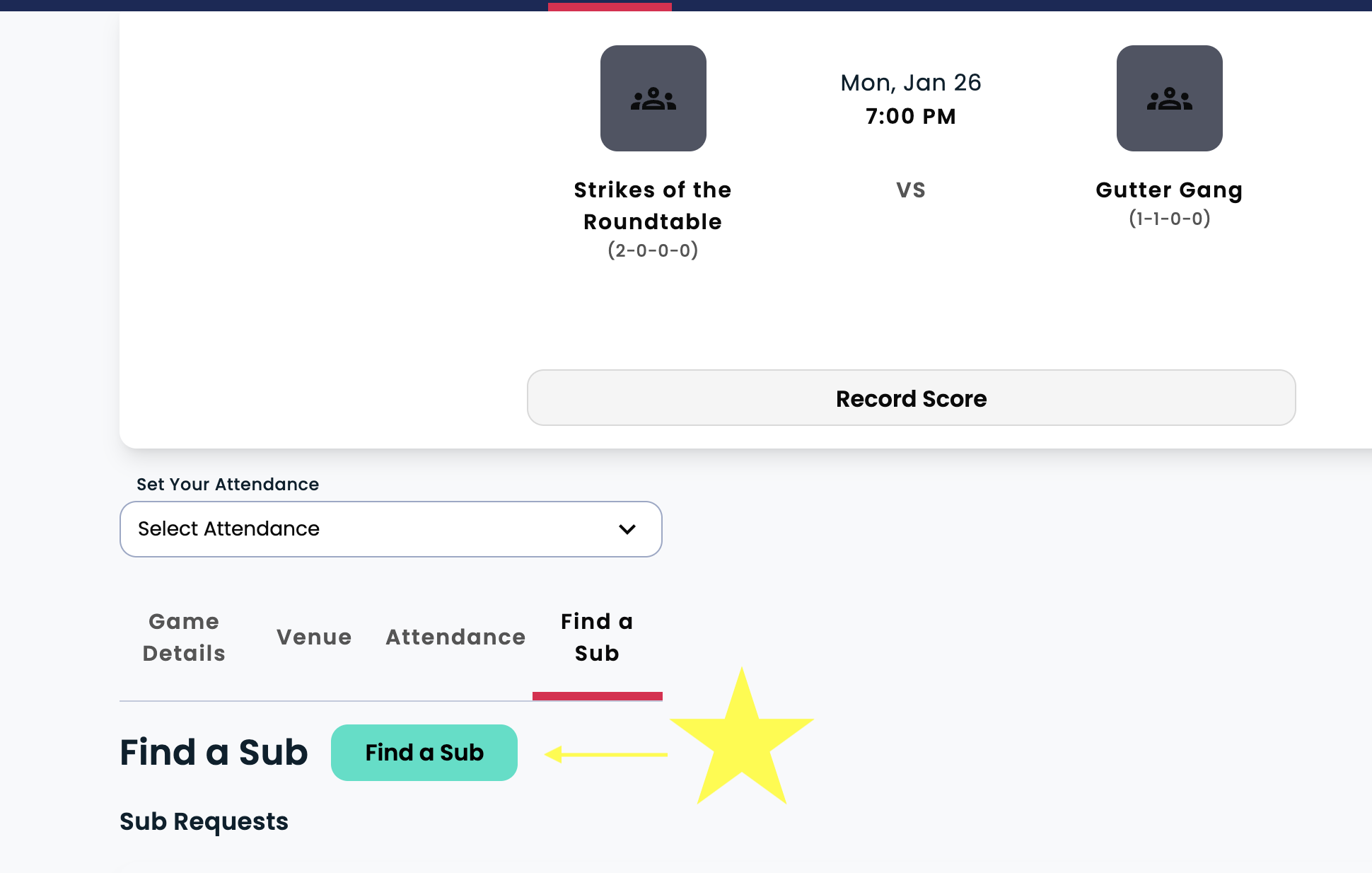
Navigate to the "Roster" tab and select the "Find a Sub" tab, then click the teal "Find a Sub" button.
A pop out screen will appear, allowing you to select the game and sub details that you need.
Once completed, click the teal "Request Subs" button.
You can then monitor, accept, and decline sub requests in the "Find a Sub" tab.
When accepted, it will display in the "Find a Sub" tab on both the "Roster" and "Game Info" pages.
The first name of your sub is visible to the opposing captain on the "Game Info" page.
Captains and assistant captains can remove a sub after accepting it.
For team registrations, only captains and assistant captains of can create sub requests.
For free agent teams, only the captain can create sub requests.
This feature can also be accessed from the game details, part of the scheduling area.
Individual Use
For when you're looking to sub in with a team.
When logged into your JAM profile, navigate to the "Teams" tab at the top of the page.
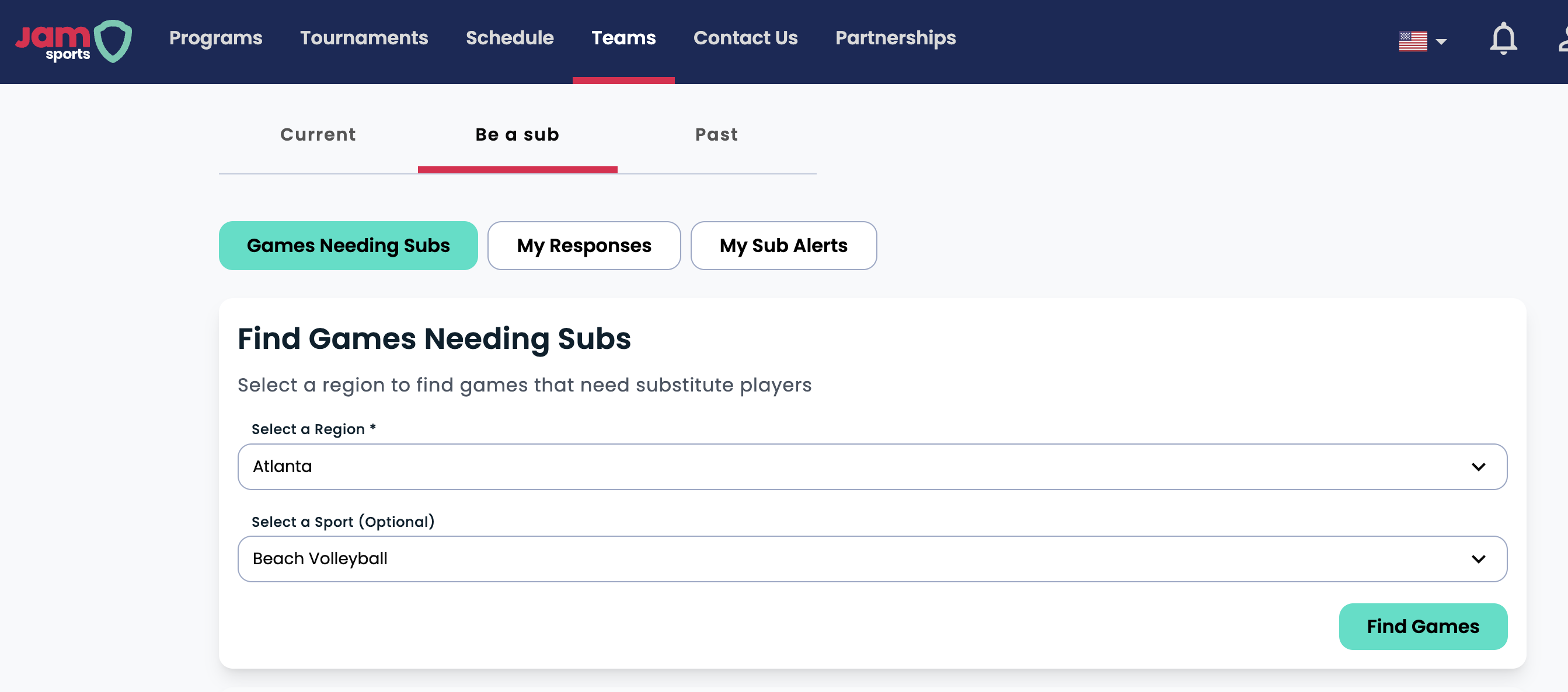
Click the "Be a sub" tab to view all the sub options.
Select a region (required) and sport (optional), then click "Find Games".
Relevant sub matches will appear and you can apply by clicking the "Apply as Sub" button.
If the team captain accepts or declines your request, you will be notified via email.
Accepted requests will display in the "My Responses" tab.
You can cancel your sub application at any time.
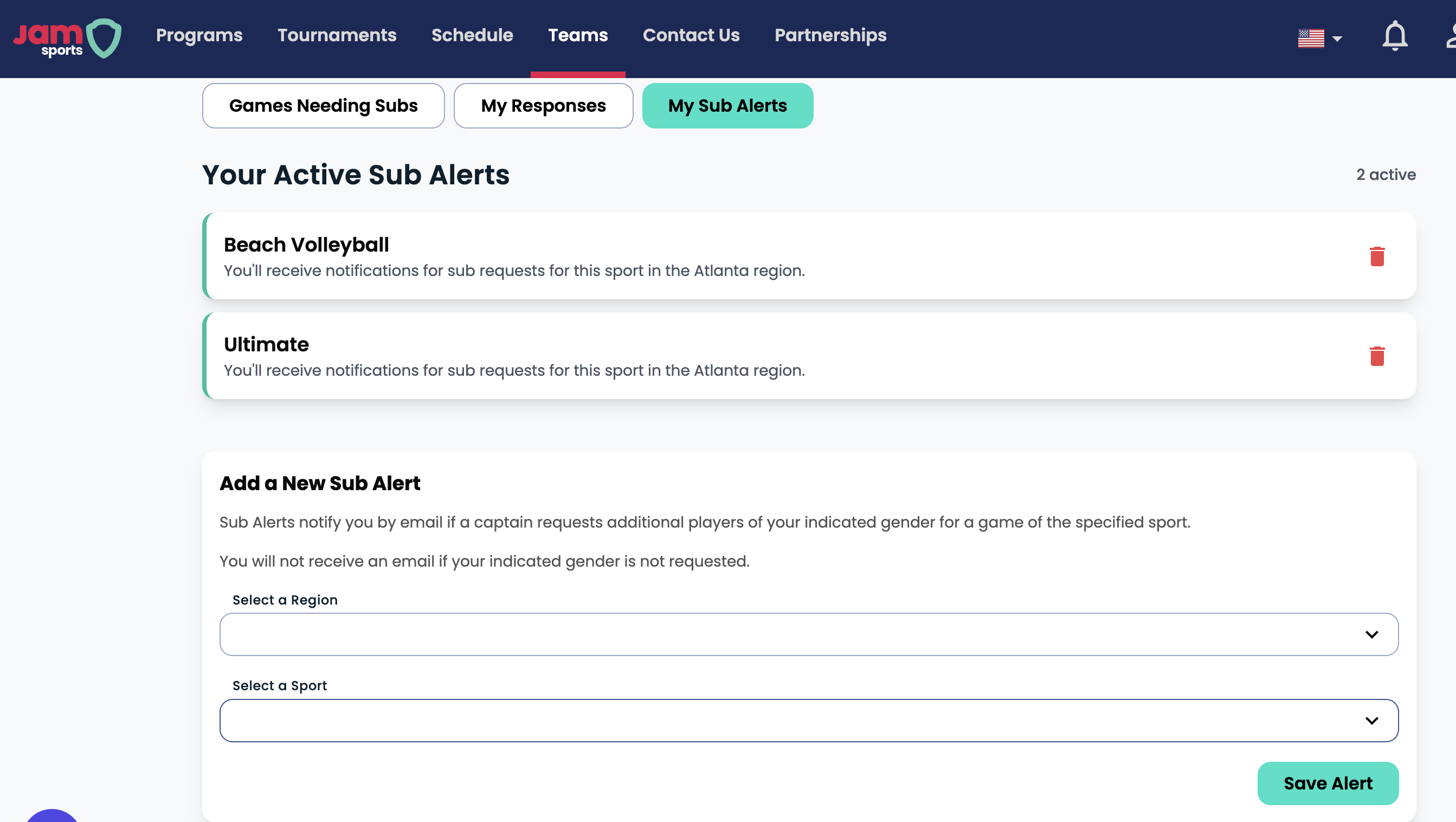
Set notifications in the "My Sub Alerts" tab to be notified when sub requests are posted.
A Few Quick Heads-Ups
As mentioned, the tool is available to captains/assistant captains of team registrations, as well as captains of free agent teams.
Currently, if you are a soccer or floor hockey captain looking for a goaltender, we do not specifically have position-specific requests available. This will be addressed in upcoming releases.
Games needing subs will list the skill level next to the name of the sport. This may include "recreational", "intermediate", or "competitive".